Type CSS selectors to pick exactly the right plates, apples and pickles off a table across 32 lessons.
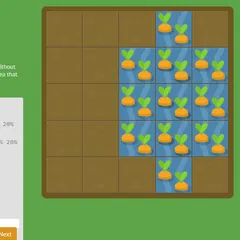
CSS Diner teaches CSS selectors with a dinner table. Each level lays out plates, bento boxes, apples, oranges and pickles, then gives you an order such as picking only the small apples. To fill it, you write the CSS selector that would match just those things.
The table is built from real HTML, so your selector is checked against actual elements. You find out at once which items it caught.
How a level works
The items you need are the ones bouncing on the table. Under the table, the HTML Viewer shows the markup for everything on it. On the right, a help panel explains the selector of the level, with its syntax and a few examples.
Write your rule in the CSS Editor box, then hit Enter. A correct rule sends the bouncing items flying away, marks the level as solved and moves you along. Pick too many, too few or none, and the editor shakes so you can try again. Your answer does not need to match the example. Any selector that grabs the right items and nothing else counts.
What you learn
The 32 levels build on each other in a clear order:
- Element types, IDs and classes, plus combining them.
- Descendants, commas and the
*universal selector. - The
+,~and>sibling and child combinators. - Pseudo-classes such as
:empty,:not(),:first-child,:only-of-typeand the nth family. - Attribute selectors, including the
^=,$=and*=matches.
Common mistakes
A space between two names changes everything. plate > apple is strict, since the apple must rest right on the plate. Drop the arrow and plate apple also catches apples nested deeper inside. Mixing the two up is the most common reason the editor shakes.
Another slip is counting from zero. In :nth-child(3), the 3 means the third child. Formulas such as 2n+3 step through items in jumps, so test them against the bouncing items rather than guessing.
It also helps to read the HTML Viewer before typing. The order explains what to pick, while the code lists every tag, class and ID you have to work with. Hover over an item on the table to light up its line of code, or hover over a line to light up the item.
Good to know
Your current level and the levels you have solved are stored in your browser. A Reset Progress link at the bottom of the level menu clears it all. A phone with an on-screen keyboard can work, but the two-column layout and hover tips are made for a wider screen with a mouse.
Controls
| Action | Keyboard | Mouse |
|---|---|---|
| Type a selector | Type in the CSS Editor box | — |
| Check your answer | Enter | Click the "enter" button |
| Jump to a level | Type the level number, then Enter | Open the menu (top right) and click a level |
| See an item's HTML | — | Hover over an item on the table or a line in the HTML Viewer |
| Previous or next level | — | Click the arrows beside the level title |
| Close the level menu | Esc | — |
CSS Diner FAQ
Is CSS Diner good for school?
Yes. Each level teaches one selector with a short explanation, a syntax line and examples, and you practice it right away on real HTML. It works well on a school laptop or Chromebook with a keyboard, since you type every answer.
Do I need to know CSS before I start?
No. The first levels only ask for a plain element name such as plate, and the help panel explains each new idea as it appears. Later levels build on what you learned earlier, so working through them in order is the easiest path.
How many levels are there and when does it end?
There are 32 levels. They run from element, ID and class selectors through combinators and pseudo-classes to attribute selectors. Solving level 32 finishes the game.
Can I skip to a level I want to practice?
Yes. Open the level menu in the top right and click any level, or type the level number in the editor and press Enter. The arrows beside the level title also step forward or back one level.