Your ball keeps rolling until something stops it. Gather all the gems and never slide into a mine.
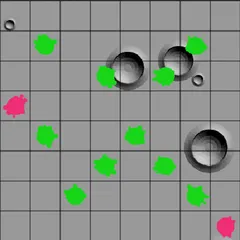
Inertia Gem Slide gives you a green ball on a grid full of stop squares, walls, mines and gems. The ball can’t brake. Once you send it rolling, it keeps going until something stops it, scooping up any gems it crosses along the way.
To win, you have to gather all of the gems. The danger is that a mine anywhere on the ball’s path will blow it up, so every move needs a bit of planning.
Rules in brief
There are eight ways to roll: the four straight directions plus four diagonals. Click or tap the grid in roughly the direction you want, or use the arrow keys and number pad.
Here’s what you’ll see on the board:
- Gray blocks are walls. The ball halts on the square just before one.
- Broken circles are stop squares. The ball parks on them from any direction.
- Cyan diamonds are gems. Rolling over one collects it without slowing you down.
- Spiky black balls are mines. Touch one and the ball explodes.
Diagonal rolls have one special trick. If two walls only meet at a corner, the ball can slip between them on a diagonal. Gems never act as brakes, so a single roll can scoop up several at once.
Common mistakes
The most common error is not looking far enough ahead. Before every move, follow the line all the way to its stopping point, and scan for mines along the whole way.
Another trap is collecting a gem tucked in a dead end you can’t escape. Make sure you can roll back before you commit. Stop squares are your friends here, since they give you reliable places to land. Routes that hop between stop squares are much easier to control.
Good to know
Hitting a mine isn’t the end. The status bar reads DEAD, and you can press Undo to step back to just before that move. A death counter next to the gem count tracks how often you’ve exploded, so you can aim for a clean run.
Grid sizes come from the Type menu, with 10x8, 15x12 and 20x16 presets. Custom lets you set any width and height. Use N for a new grid, U to undo and R to redo. If the solver helps you, the status bar notes that too. When its hint arrow is showing, press Space to take the suggested step.
Controls
| Action | Keyboard | Mouse | Touch |
|---|---|---|---|
| Slide up, down, left or right | Arrow keys or number pad 8, 2, 4, 6 | Left-click on the grid in that direction from the ball | Tap on the grid in that direction from the ball |
| Slide diagonally | Number pad 7, 9, 1, 3 | Left-click diagonally away from the ball | Tap diagonally away from the ball |
| Follow the hint arrow after Solve | Space | — | — |
| Undo (also after hitting a mine), redo, new grid | U / R / N | Undo move, Redo move and New game buttons | Undo move, Redo move and New game buttons |
Inertia Gem Slide FAQ
Can I play Inertia Gem Slide on a phone or Chromebook?
Yes. On a phone or tablet, tap the grid on the side the ball should head toward. On a Chromebook, use the arrow keys, the number pad for diagonals, or click with the mouse. The square board fits either screen orientation.
How do I win a grid?
Collect every gem on the board. The status bar keeps count, and it shows COMPLETED once none remain. If your last gem and a mine land on the same roll, that roll counts as a loss instead.
What if I get stuck?
Press Solve. The built-in solver finds a route and marks the next step with a yellow arrow, which you can take with Space. You can also undo as far back as you like and try another path.